
|
Automatic Texting and Emailing
Text messaging is available in the U.S. and Canada. For international texting, contact the TSD Sales Team by emailing sales@tsdweb.com.
Texting and emailing are quick and efficient ways to connect with your customers and provide appointment and agreement confirmations, as well as copies of agreement forms.
Setup Requirements
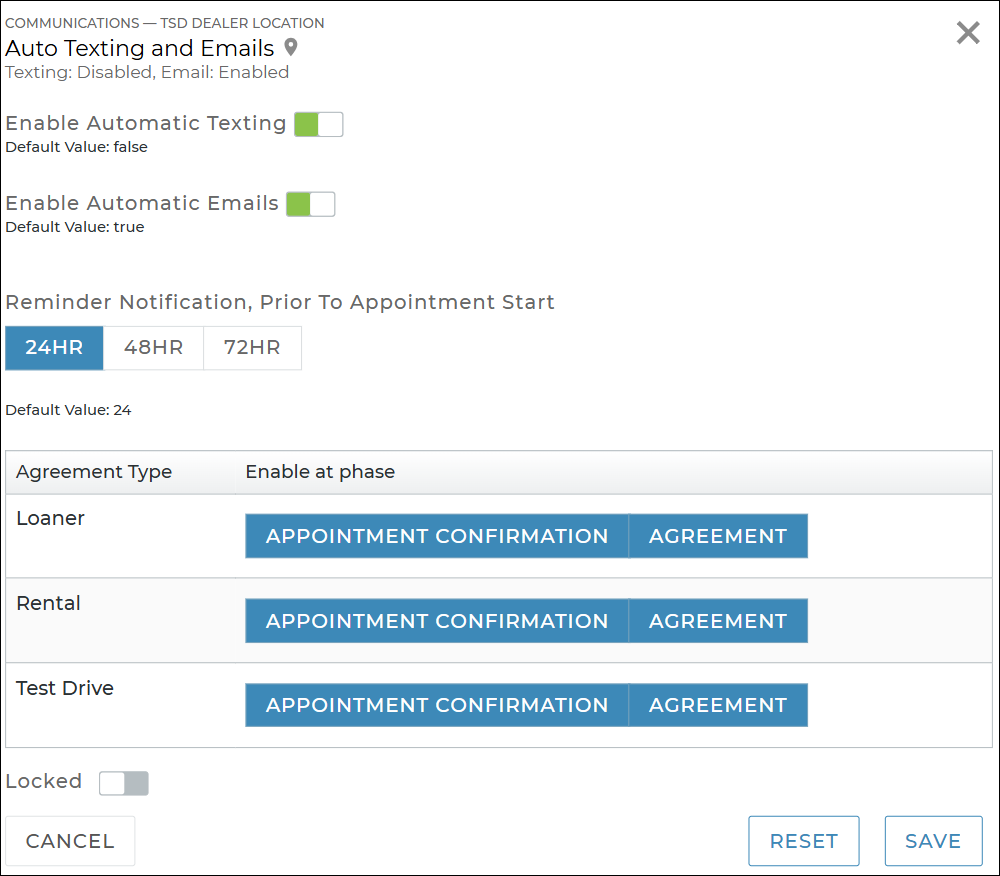
- Turn on automatic texting and/or emailing. Turn on texting and/or emailing for different types of appointments and agreements as follows:
- Edit (
 ) the the Auto Texting and Emails management setting.
 - Toggle on Enable Automatic Texting for texts and/or Enable Automatic Emails for emails.
- (For appointment confirmations only) Choose when an additional follow-up reminder message is sent, prior to the appointment Checkout Date: 24 hours (default), 48 hours, or 72 hours. (The only exception is when an appointment is booked for later the same day.)
- Click .
- (Performed by TSD, if applicable) TSD must turn on automatic texting for Web Schedulers. If you use a auto texting and Expedited Appointments along with a Web Scheduler or BDC integration, TSD must turn on auto texting on these appointments. Contact TSD Support at support@tsdweb.com for assistance.
- (Optional, for appointment confirmations.) Change the default email subject or customize the email or text. If you want to customize your email subject or add additional text to the body of the email and text message, use the Appointments Confirmation Messages setting.
- Make sure a valid phone number and/or email address is present on the appointment and/or agreement.
- In order for the customer to receive a text, the phone number1 must be filled in and Text Allowed must be toggled on, indicating that the customer has opted to receive text notifications.
- To receive an email, the email address must be filled in and Opt Out of Emails, if present,2 must be toggled off, indicating that the customer has opted to receive emails.
Hover to view the full-sized image.
Appointment Confirmation Texts / Emails
When you've set up texting and/or emails for appointment confirmations, a message is automatically sent to the customer when the appointment is booked, as long as the information is filled in and the customer has opted to receive texts and/or emails.
For appointment confirmations, an additional reminder text and/or email will be sent to the customer prior to the appointment's checkout date, based on your setups; the only exception is when an appointment is booked for later the same day.
Note: If you edit a Booked appointment or revert an Expired appointment into a Booked appointment by changing the dates, a confirmation text or email is not sent to the customer.
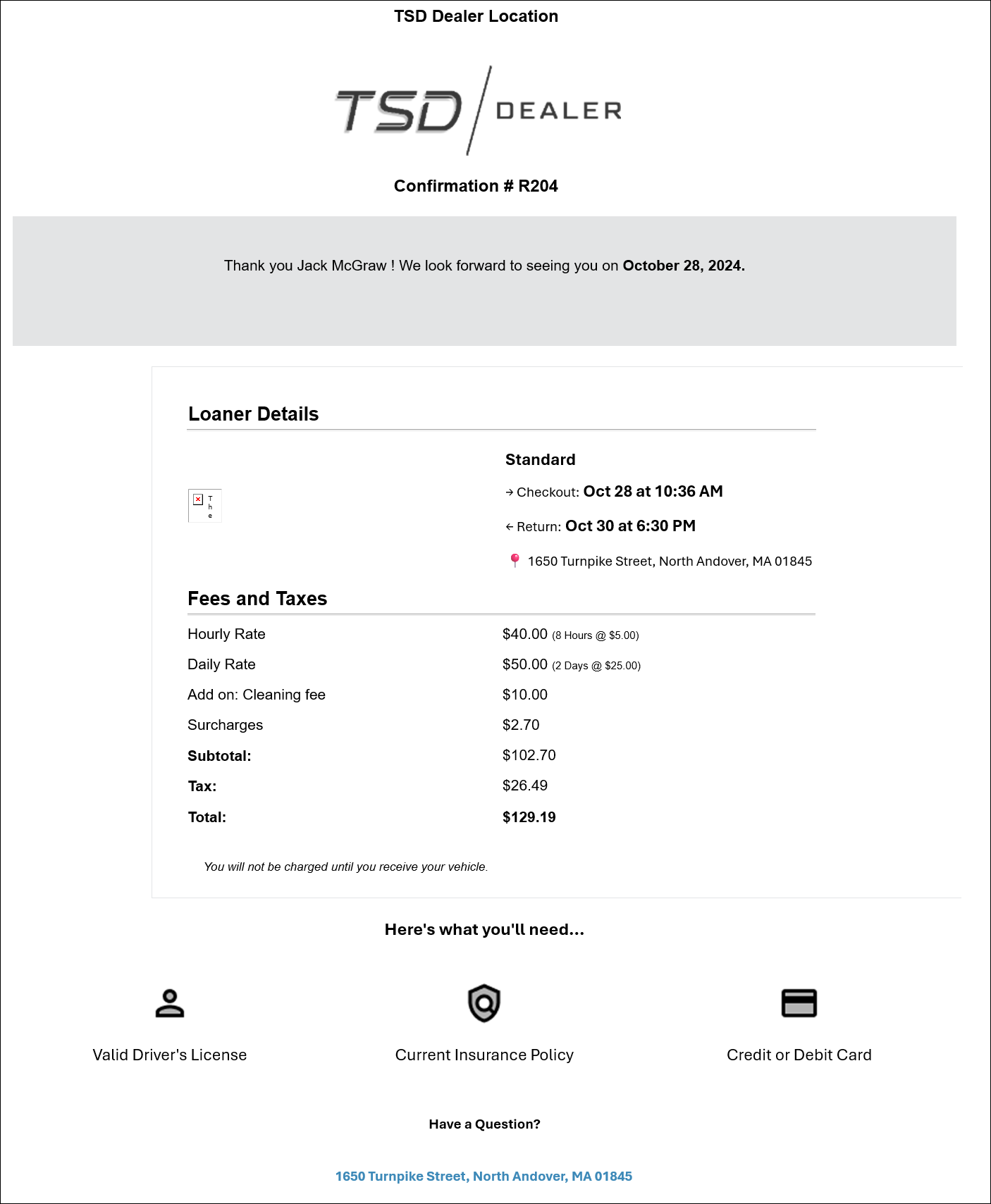
Below is an example of a loaner appointment confirmation email, which has the default subject: [Your Location Name] Upcoming [Type (Loaner/Rental/Test Drive] Appointment Appointment Number on Checkout Date and Time.
Hover to view the full-sized image.
Appointment confirmations for Expedited Appointments also contain a link to access the appointment.

Hover to view the full-sized image.
Appointment confirmations for TSD's Delivery and Collection contain the delivery address details; for deliveries, instead of the pickup location address.
Agreement Texts / Emails
When set up for agreements, an email or text is automatically sent when an agreement is opened and closed, as long as the information is filled in and the customer has opted to receive texts and/or emails.
The message contains the signed or unsigned agreement form PDF as a link (in text) or attachment (in email).
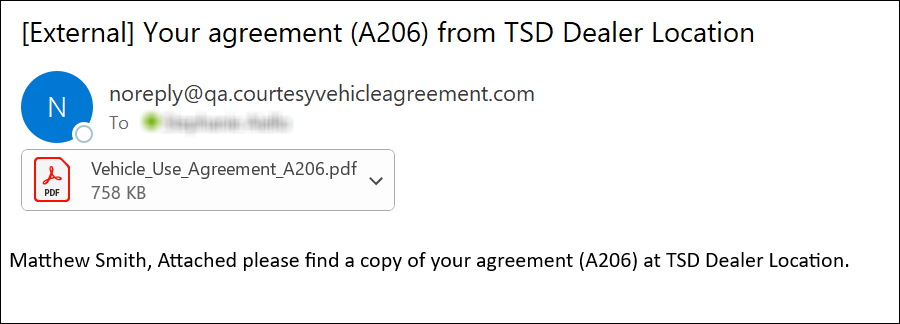
Below is an example of an agreement email, which has the default subject: Your agreement ([Agreement Number]) from [Your Location Name].
Hover to view the full-sized image.
© 2026 TSD Rental, LLC